

Getting Started with PL Cares
Follow the process for setting up your account and getting the PL Cares app installed on your phone.
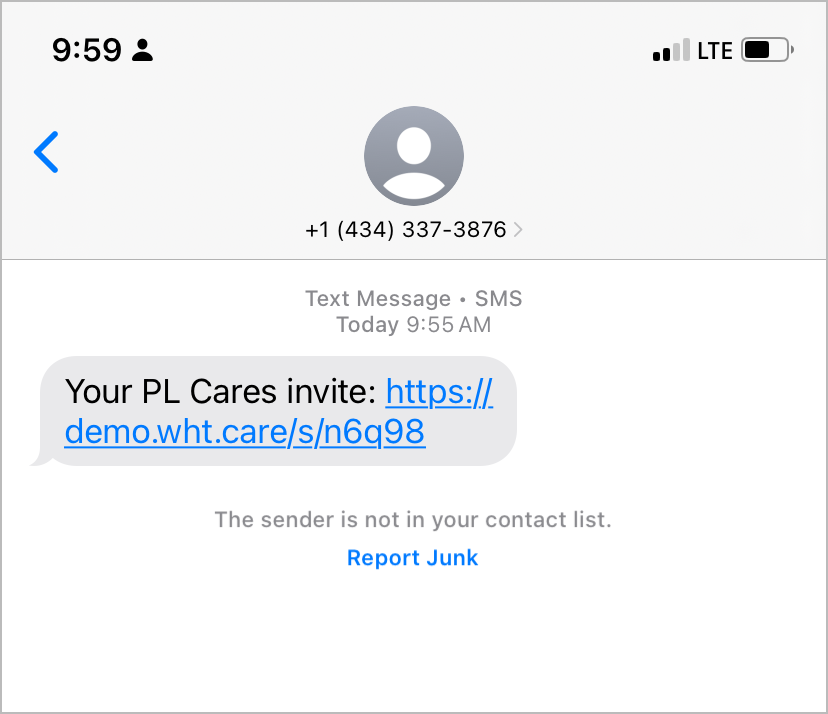
1. Use your invite link to set up your account.
Look in your texts for the PL Cares invite link. Tap the link to set up your account.
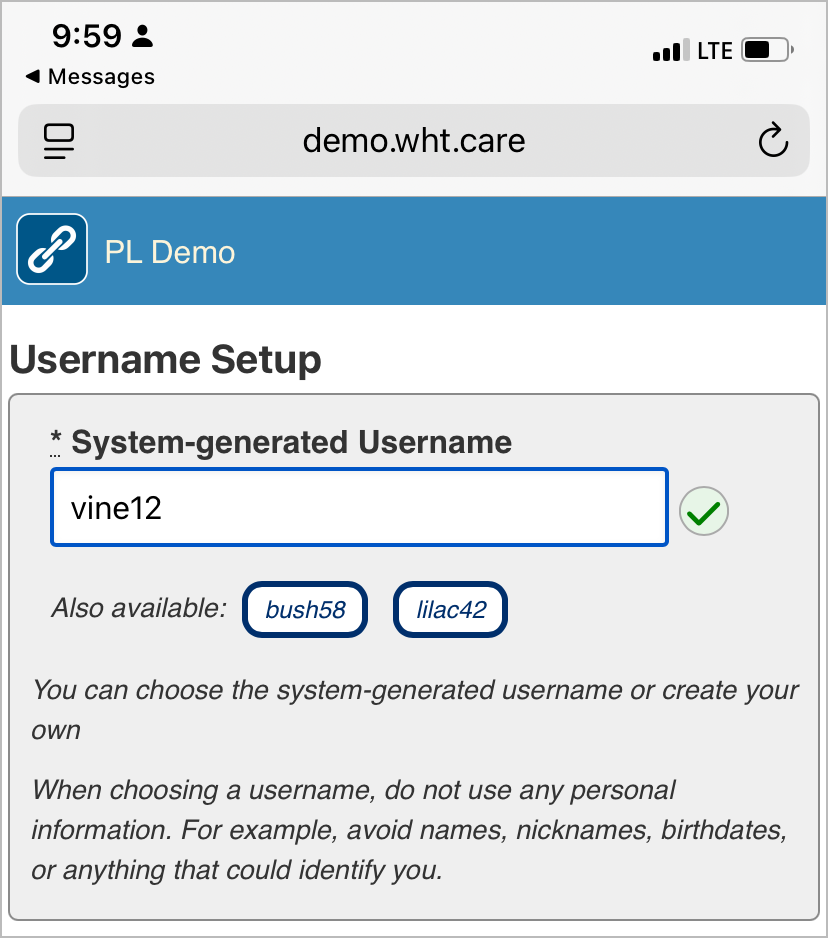
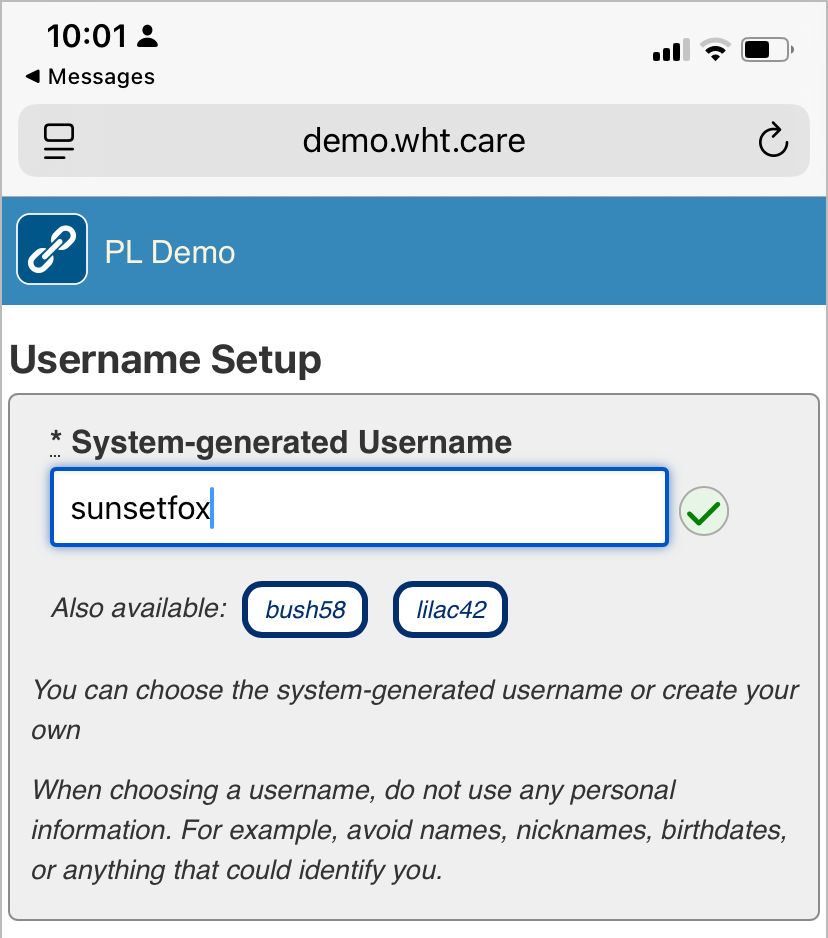
2. Set your Username
Follow the instructions on the screen to accept a system-generated username or create your own. Below, an onboarding member was given the system-generated username, vine12. The member chose their own username and entered sunsetfox into the username field.
3. Set your Password
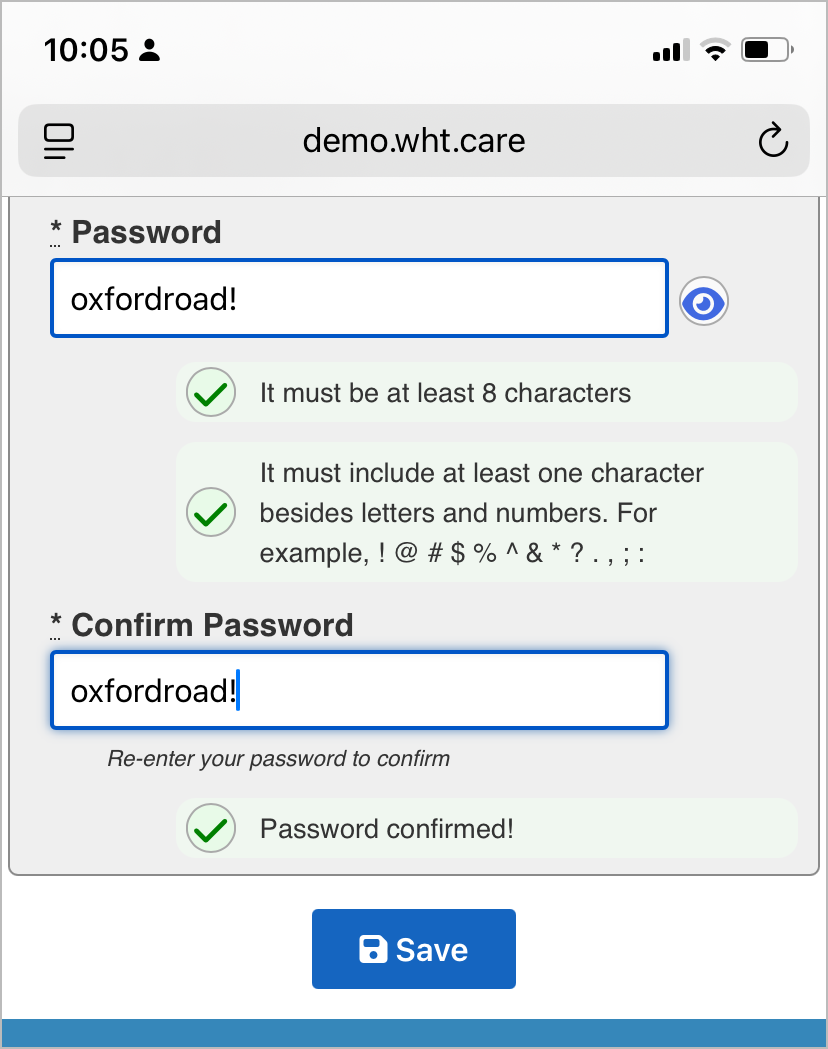
Follow the instructions on the screen to set and confirm your password. Tapping the eye icon allows you to see the password you are typing.
When the password meets the requirements, a green checkmark will appear.
Confirming your password means to retype it in again to make sure it matches the first one you entered.
When the password has been entered and confirmed and the three green checkmarks are showing, tap Save to finish the account setup.
4. Install PL Cares
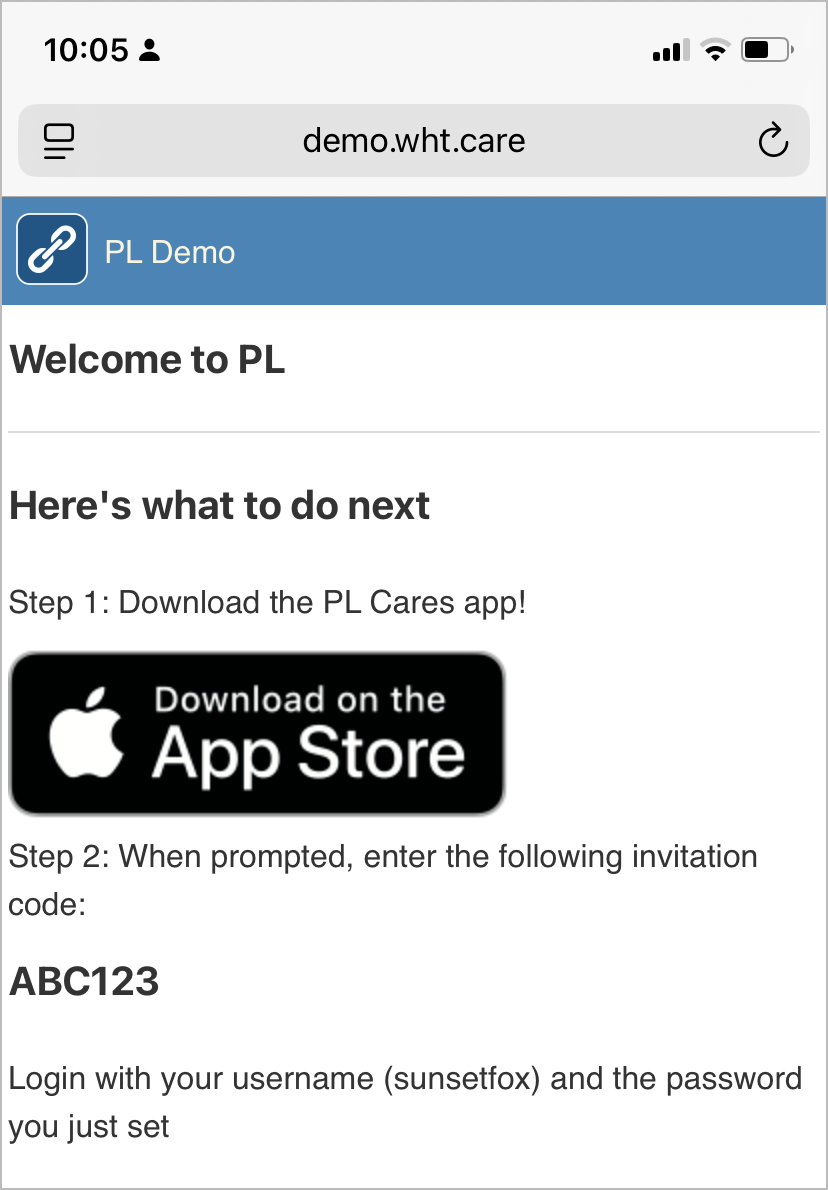
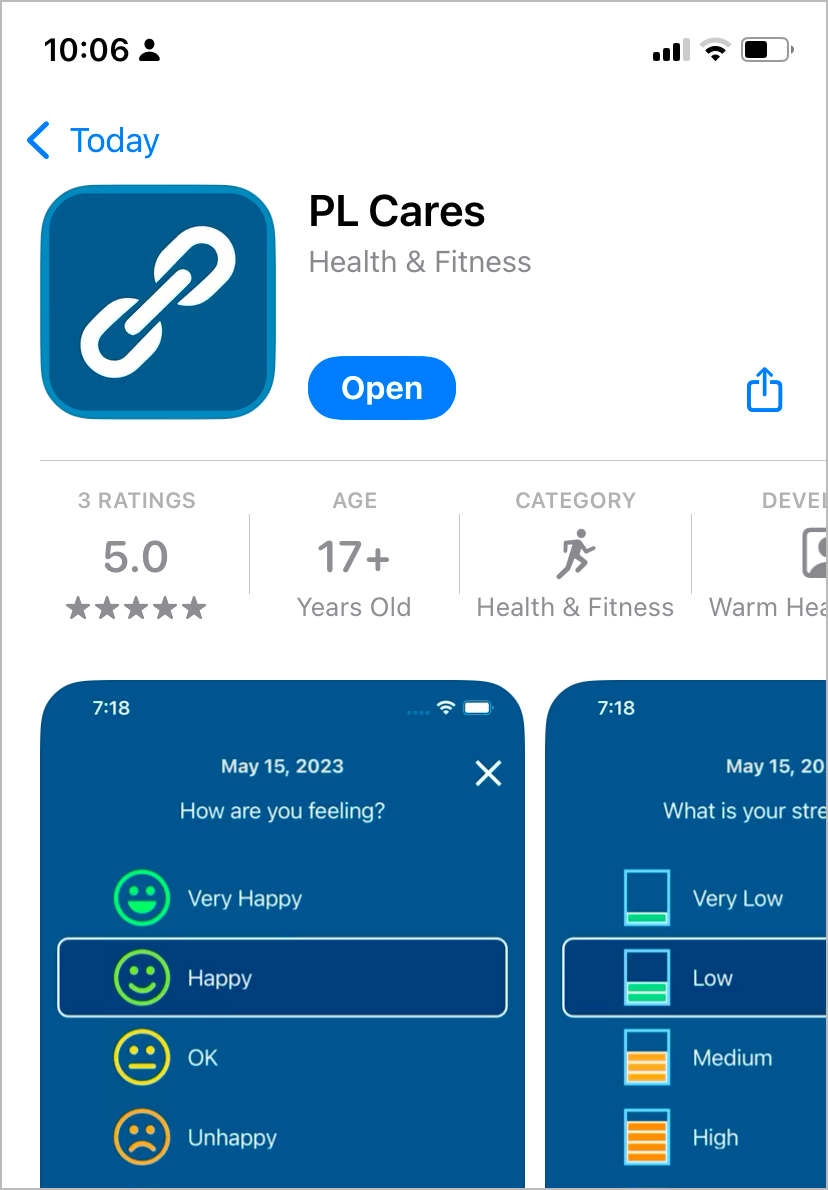
Depending on your phone type, you will see a link to the appropriate store to download and install PL Cares. Tap the link to go to the store, then tap open or install to download and install PL Cares.
5. Enter your Invite Code
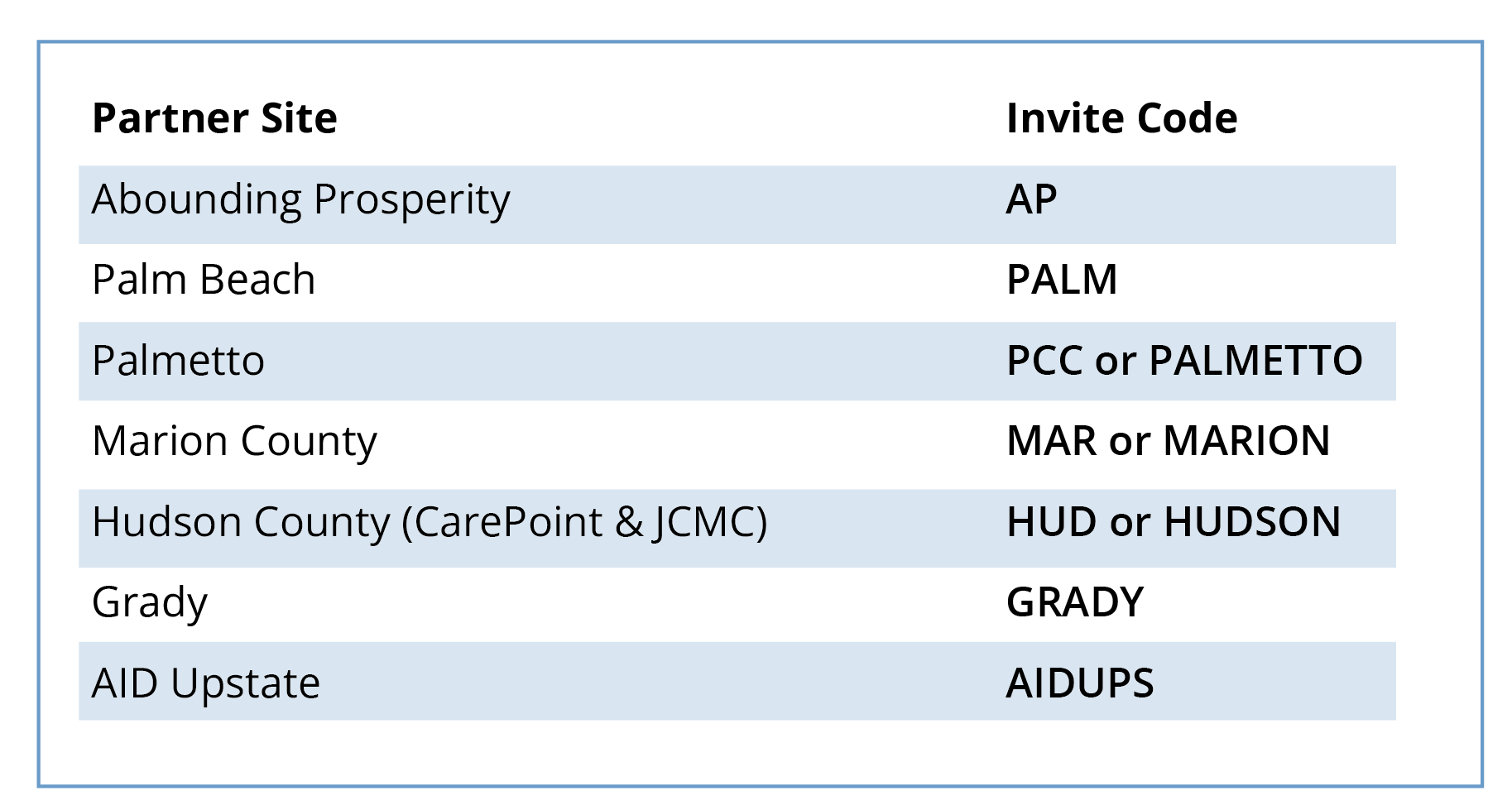
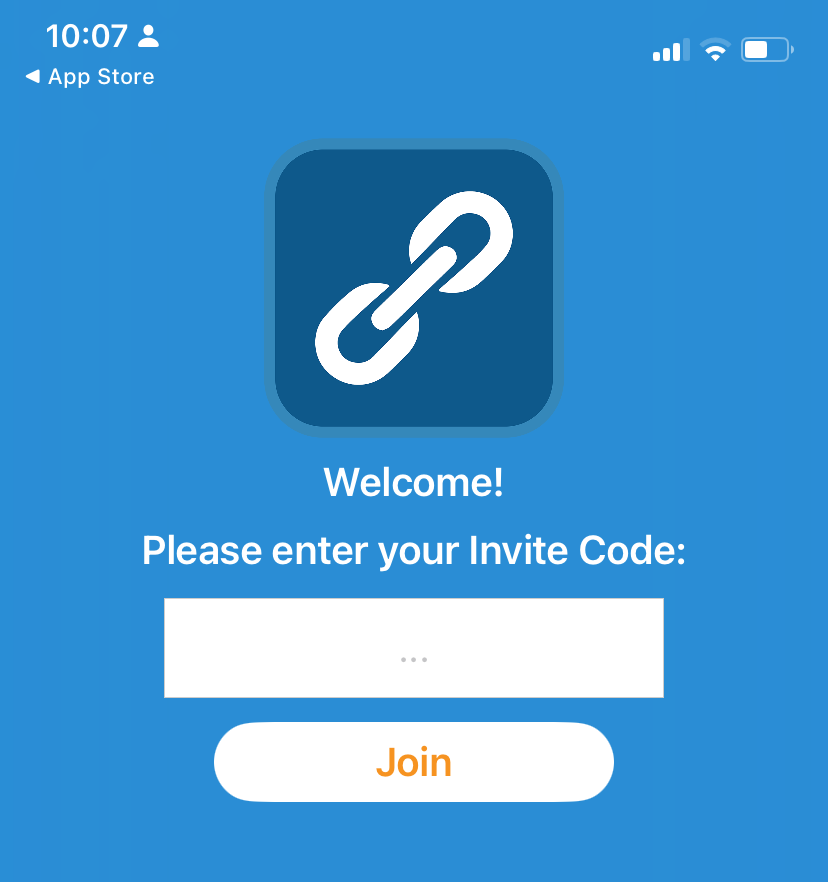
The invite code makes sure you are in the correct cohort in PL Cares. Enter your Invite Code. You only have to enter this when installing or reinstalling PL Cares.
6. Sign In to PL Cares